Support our educational content for free when you buy through links on our site. Learn more

🎶 15 Best Song Creator Software Picks to Make Your Own Song

The best song creator software is the one that helps you finish a song—not just collect plugins. For most beginners, BandLab is a strong free place to start; GarageBand suits Apple users, while FL Studio and Ableton Live offer deeper beat-making workflows.
A DAW can help you turn a hummed hook into a full track: record vocals, build beats, arrange sections, mix, and export. But we’ve seen the same thing happen in the studio again and again: someone auditions drum sounds for an hour, then realizes the chorus is still a voice memo. Start with the song idea. The software can catch up.
Below, we compare 15 options for desktop, browser, and mobile, explain what to look for, and walk through making a song from first sketch to final export. If you want inspiration before opening a studio, try our song generator.
Key Takeaways
- Choose software for your workflow: BandLab is a versatile free starting point, GarageBand is beginner-friendly for Apple users, and FL Studio or Ableton Live are strong choices for beat-focused production.
- You can make release-ready music with free software. Check export limits, sound-library licences, and project access before committing to a platform.
- Prioritize the essentials: Multitrack recording, MIDI instruments, editing, mixing tools, and reliable exports matter more than an enormous feature list.
- Start small: Build a beat or chord progression, record a rough vocal, and arrange a verse and chorus before polishing sounds.
- Make backups and check licences. Save project files and audio exports, and confirm you have permission to use any loops, samples, or remix material.
Table of Contents
- ⚡️ Quick Tips and Facts
- 🎛️ What Is Song Creator Software?
- How a Digital Audio Workstation Helps You Make Music
- Song Creator Software vs. Beat Maker Apps
- 🕰️ From Multitrack Recording to Online Music Studios
- 🏆 15 Best Song Creator Software Picks
- Best Overall Music Production Software
- Best Free Songwriting and Recording Tools
- Best DAWs for Beginners
- Best Software for Beat Making and Electronic Music
- Best Online and Collaborative Music Studios
- Best Song Creator Apps for Phones and Tablets
- 🔍 Song Creator Software Compared
- Features, Platforms, and Ideal Users
- Free vs. Paid Music-Making Software
- 🧭 How to Choose Songwriting and Music Production Software
- Check Your Computer, Operating System, and Audio Interface
- Set a Budget and Watch for Subscription Limits
- Choose a Workflow That Fits Your Music
- 🎹 Essential Features in a Song Creator Program
- Multitrack Recording and Audio Editing
- Virtual Instruments, MIDI, and Drum Machines
- Loops, Samples, and Royalty-Free Sounds
- Vocal Recording, Tuning, and Mixing Tools
- Automation, Effects, and Plug-In Support
- Beat Sequencers and Pattern-Based Production
- Cloud Collaboration and Online Music Projects
- 🎼 How to Make a Song With Creator Software
- 1. Start a Project and Set the Tempo
- 2. Build Chords, a Melody, or a Beat
- 3. Record Vocals and Instruments
- 4. Arrange Verses, Choruses, and Bridges
- 5. Edit, Mix, and Master Your Track
- 6. Export and Share Your Song
- 🥁 How to Make Pro Beats With Music Production Software
- Choose a Drum Sound and Set Your Groove
- Add Bass, Chords, and a Memorable Hook
- Arrange, Mix, and Export the Beat
- 🎚️ How to Mix a Song in an Online Studio
- Balance Tracks and Pan Instruments
- Use EQ, Compression, Reverb, and Delay
- Master and Export for Streaming
- 🔁 How to Remix a Song Legally and Creatively
- 🌐 Online Song Creator Software and Remote Collaboration
- Share Projects, Record Together, and Manage Versions
- Working With Cloud-Based Music-Making Tools
- 📱 Desktop, Browser, or Mobile: Which Music Studio Fits?
- 🎧 Recording Gear and Plug-and-Play Setup
- Microphones, Headphones, MIDI Keyboards, and Audio Interfaces
- Low-Latency Settings and Troubleshooting
- 📚 Songwriting Tutorials and Music Maker Resources
- 🛠️ Common Song Creator Software Problems and Fixes
- ✅ Conclusion
- 🔗 Recommended Links
- ❓ FAQ
- What is the best song creator software for beginners?
- Can I create a song for free?
- What software do music producers use to make songs?
- Can I make music without instruments or music theory?
- Can song creator software record and tune vocals?
- Can I make music on a phone or Chromebook?
- What is the difference between a DAW and a music maker app?
- Can I release songs made with royalty-free loops?
- 📖 Reference Links
⚡️ Quick Tips and Facts
Looking for a song generator to spark an idea, or a full digital studio to write, record, and mix your own track? Song creator software can do both, but “music maker” covers everything from a simple loop app to a professional digital audio workstation (DAW).
| Quick fact | What it means for you |
|---|---|
| A DAW can record, edit, arrange, and mix audio | One program can take a song from rough demo to finished export. |
| Free software can make release-ready music | The tools matter, but arrangement, recording, and mixing decisions matter more. |
| “Free” may come with limits | Check export formats, project limits, sound-library access, cloud storage, and licensing. |
| Browser-based studios are convenient | They can make remote collaboration easier, but need reliable internet and compatible browsers. |
| Lops are ingredients, not finished songs | Add your own arrangement, performances, sound design, or vocals to make a track distinctive. |
| You don’t need to know music theory first | A piano roll, chord tools, and your ears are enough to get started. |
Our quick picks:
- Best free place to start: BandLab for browser, phone, collaboration, and a broad set of starter tools.
- Best Mac starter DAW: GarageBand for built-in instruments, recording, and a friendly learning curve.
- Best open-source option: Audacity for recording and editing audio; pair it with a DAW if you need full MIDI-based composition.
- Best for electronic production: FL Studio for pattern-driven beats and a well-established loop-and-sequencer workflow.
- Best for professional, cross-platform production: REAPER for flexible recording and editing, though its interface rewards patience.
A little producer confession: we’ve watched people spend an hour auditioning snare sounds before writing a chorus. Sound selection is fun; finishing the song is the magic trick. Start with a verse, a hook, and a rough beat. Polish the snare later.
🎛️ What Is Song Creator Software?
Song creator software is any app or program that helps you write, arrange, record, edit, or produce music. It might generate a musical idea, let you stack loops, record a guitar, build a beat, or handle the whole production chain.
A full DAW typically provides a timeline or arrangement view, audio tracks, MIDI tracks, editing tools, virtual instruments, effects, and export options. A simpler song maker may focus on loops, preset patterns, or one-tap creation. Neither is automatically “better”; the right choice depends on whether you want to sketch an idea or build a flexible production.
How a Digital Audio Workstation Helps You Make Music
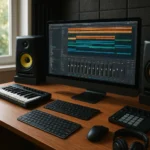
A DAW is the digital equivalent of a recording studio’s control room. You can record performances, arrange them, edit timing, add virtual instruments, process tracks with effects, and export a finished audio file.
Common DAW tasks include:
- Songwriting: Record a melody, test chords, or draft lyrics beside a demo.
- Beat making: Program drums and bass with a step sequencer or MIDI piano roll.
- Multitrack recording: Layer vocals, guitars, keyboards, and other instruments.
- Editing: Trim, move, duplicate, tune, and clean up audio or MIDI.
- Mixing: Adjust level, panning, equalization, compression, and effects.
- Exporting: Render your project to formats such as WAV or MP3.
The Recording Academy’s overview of recording technology and manufacturers’ DAW documentation show how modern software consolidates tasks once spread across separate hardware. For a practical primer on studio setup, see our DIY recording studio guides.
Song Creator Software vs. Beat Maker Apps
A beat maker is usually optimized for creating rhythms and arranging musical patterns. A full DAW can do that too, then add detailed vocal recording, audio editing, mixing, and mastering.
| Tool type | Best for | Typical strengths | Common limitation |
|---|---|---|---|
| Song generator | Prompt-based ideas or quick drafts | Fast inspiration and low setup | Less control over performances and arrangement |
| Loop-based music maker | Building tracks from supplied sounds | Easy to start; quick genre sketches | Tracks can sound familiar if you rely on stock loops |
| Beat-making app | Drums, bass, and electronic patterns | Fast sequencing and sound shaping | May be less comfortable for long-form recording |
| Full DAW | End-to-end music production | Flexible recording, editing, MIDI, mixing | More features to learn |
| Audio editor | Cutting, cleaning, and shaping recordings | Straightforward waveform editing | May lack advanced composition and MIDI workflows |
Want a writing prompt rather than a production studio? A generator can help you find a starting point. Want to record your own vocal, arrange a bridge, and adjust the bass? Choose a DAW.
🕰️ From Multitrack Recording to Online Music Studios
Early recording setups relied on physical tape machines, mixing desks, and outboard effects. Digital recording made editing and multitrack production more accessible; current DAWs let musicians build a studio around a computer, tablet, or browser.
That shift changed who could make music. You can now record a vocal in a bedroom, program drums on a laptop, and send project files to a collaborator across the world. But access doesn’t automatically make a song compelling. The craft still lives in the choices: what to play, what to leave out, and when the chorus arrives.
The Library of Congress’s audio preservation resources offer useful context on recording formats and preservation. For songwriting ideas that start with a phrase rather than a plugin, explore our lyric inspiration resources.
🏆 15 Best Song Creator Software Picks
There is no single best music-making program for everyone. We recommend choosing by workflow, platform, recording needs, and learning curve, not by how many synths a product page can fit into one screenshot.
| Software | Best for | Platforms | Main advantage | Trade-off |
|---|---|---|---|---|
| BandLab | Free online collaboration | Web, iOS, Android | Accessible studio and social collaboration | Some advanced options depend on plan or connection |
| GarageBand | Mac and iOS beginners | macOS, iOS | Friendly interface and included sounds | Apple-only |
| REAPER | Flexible audio production | Windows, macOS, Linux | Deep customization and strong editing | Interface takes getting used to |
| Waveform Free | Free desktop DAW | Windows, macOS, Linux | Full DAW approach with broad workflow | Some plug-in or project setups need troubleshooting |
| LMS | Free MIDI-based beat production | Windows, macOS, Linux | Open-source pattern and instrument workflow | Not designed around recording audio like a traditional studio DAW |
| Audacity | Recording and audio editing | Windows, macOS, Linux | Straightforward waveform editing | Not a complete MIDI composition environment |
| Soundtrap | Browser-based songwriting | Web, iOS, Android | Cloud projects and remote collaboration | Browser workflow may not suit every advanced session |
| FL Studio | Beat making and electronic music | Windows, macOS | Pattern-based composition and broad production ecosystem | Can feel less intuitive for some live-recording workflows |
| Ableton Live | Electronic music and performance | Windows, macOS | Session View supports flexible live arrangement | Distinct workflow has a learning curve |
| Logic Pro | Mac-based full production | macOS, iPadOS | Comprehensive recording and production tools | Apple ecosystem only |
| Pro Tools | Studio recording and editing | Windows, macOS | Established professional recording workflow | Can be more than a beginner needs |
| Studio One | Recording, arranging, mixing | Windows, macOS | Integrated production workflow | Version and feature choices can take research |
| Cubase | Composition and MIDI production | Windows, macOS | Strong composition and editing tools | Dense interface for new users |
| Reason | Instrument and rack-based production | Windows, macOS | Creative virtual rack and instruments | Rack-based design is a particular taste |
| Soundation | In-browser music making | Web | Fast browser-based entry point | Advanced production may call for a desktop DAW |
Features and plans change, so verify current details on each company’s official site before choosing. We also recommend trying a sample project: record a voice, add a drum loop, and export a short draft. That test reveals more than a dozen feature charts.
Best Overall Music Production Software
Best overall for a broad range of beginners: BandLab. It’s easy to access, supports web and mobile workflows, and makes sharing projects straightforward. Its official BandLab help center documents current features and workflows.
Best overall for an Apple-based setup: Logic Pro or GarageBand. Start with GarageBand if you want a gentle introduction; move to Logic Pro when you need a more expansive production environment.
Best overall for recording flexibility: REAPER. Its customization and editing depth suit users who like shaping their own workflow. If you’re new to recording, expect to spend time learning routing and project setup.
Best Free Songwriting and Recording Tools
- BandLab: A strong all-rounder for cloud projects, mobile recording, and collaboration.
- GarageBand: A capable free starting point for Apple users.
- Waveform Free: A desktop DAW option for people who want a more traditional production environment.
- LMS: A good fit for MIDI, loops, and electronic composition; less suitable if your main goal is recording a live vocal or guitar.
- Audacity: Excellent for voice recording and editing, but it isn’t a complete substitute for a MIDI-focused DAW.
Free tools can be genuinely useful. Still, check whether a “free sound” can be used in commercial releases, whether the app limits project exports, and whether a subscription is needed for extra sounds or advanced controls.
Best DAWs for Beginners
For a first song, try GarageBand if you use Apple devices, or BandLab if you want to work across browser and mobile. Waveform Free is worth exploring when you’re ready for a desktop DAW with more traditional track-based production.
We’ve seen beginners thrive with both simple and complex software. The pattern is consistent: people finish songs when they choose a program that lets them work without constantly searching for the next button. A simple workflow beats an intimidating feature list.
Best Software for Beat Making and Electronic Music
- FL Studio: A natural fit for pattern-based beats and loop-driven production.
- Ableton Live: A favorite workflow for electronic production and live performance.
- LMS: A no-cost way to explore MIDI-based beat making.
- BandLab: Convenient for fast beat sketches, mobile creation, and sharing.
- Reason: Offers a distinctive virtual rack approach for sound design and sequencing.
The best pick depends on whether you think in patterns, clips, or a linear timeline. If you like building an eight-bar loop and arranging it later, prioritize a strong step sequencer or clip view. If you record full-band performances, prioritize track-based audio editing.
Best Online and Collaborative Music Studios
Soundtrap and BandLab are strong options when collaborators need to work remotely. Both make sharing easier than passing around multiple project files, although the exact collaboration tools differ and can change over time.
In a challenge described in the featured video, the creator tried several free DAWs and ultimately completed the song in Soundtrap. The creator found real-time collaboration and a built-in video call especially useful for recording vocals with artist Schy West. That’s a practical reminder: the best studio may be the one your collaborator can actually join.
Soundtrap promotes a library of up to 24,000+ loops and hundreds of presets, with new sound packs advertised every two weeks. Those are platform claims; verify the current library and plan details on Soundtrap’s music-maker page. A large sound library is handy, but a catchy hook still needs a human to choose it.
Best Song Creator Apps for Phones and Tablets
For mobile music making, consider BandLab, GarageBand for iOS, and apps from established DAW makers. A phone can be enough to capture a melody, record a demo, or build a quick beat. A tablet can provide more screen space for editing and arrangement.
The Google Play listing for BandLab: Music Maker & Studio describes recording, beat making, editing, and AI-assisted features. App features and availability can change, so check the listing and the developer’s current feature documentation before relying on a specific tool.
🔍 Song Creator Software Compared
A comparison is most useful when it answers a practical question: Can I make the music I want, on my device, with a workflow I’ll keep using?
Features, Platforms, and Ideal Users
| If you want to… | Start with… | Why |
|---|---|---|
| Collaborate in a browser | BandLab or Soundtrap | Shared online projects simplify remote sessions |
| Record on a Mac without buying a DAW first | GarageBand | It offers a straightforward path into recording and arranging |
| Make electronic beats | FL Studio, Ableton Live, or LMS | These suit pattern- and MIDI-based production |
| Record vocals and guitars | REAPER, GarageBand, Logic Pro, or Pro Tools | Full DAWs support multitrack audio workflows |
| Edit spoken voice or audio clips | Audacity | Its waveform editing is direct and approachable |
| Avoid installing desktop software | BandLab or Soundation | Browser access lowers setup friction |
| Learn a customizable desktop workflow | REAPER or Waveform Free | Both offer substantial room to shape a production setup |
Look at file compatibility, too. If you might move a project between programs, ask whether the DAW supports common audio exports, MIDI files, and project interchange. A WAV export preserves a high-quality audio render; it does not preserve editable tracks and plug-in settings.
Free vs. Paid Music-Making Software
| Free option can be enough when… | A paid plan or DAW may make sense when… |
|---|---|
| You’re learning the basics | You need a particular professional feature or workflow |
| You want to write demos and share them | You need more advanced editing, instruments, or effects |
| You use built-in sounds and basic exports | You want a larger library or expanded control |
| You don’t need a large plug-in collection | You rely on specific third-party plug-ins |
| You are comfortable with the app’s storage and export limits | Your sessions need more capacity or long-term project control |
Don’t pay for features you haven’t needed yet. Start with a free tool, finish a small song, and note what genuinely slows you down. Then upgrade only if the limitation is real, not merely shiny.
🧭 How to Choose Songwriting and Music Production Software
The best song creator program is the one that supports the way you like to work. Before downloading a dozen demos, answer three questions:
- What do you want to make? Songs with live vocals, electronic beats, soundtrack cues, or quick social clips?
- Where do you want to work? Desktop, tablet, phone, browser, or a mix?
- What do you need to export or share? WAV, MP3, stems, MIDI, project files, or collaborative sessions?
For a creative jump-start, browse our guides on melody creation and instrument tutorials.
Check Your Computer, Operating System, and Audio Interface
Confirm your operating system and hardware are supported. Then check the DAW’s system requirements, plug-in formats, and audio interface compatibility on the manufacturer’s site.
A basic production setup may include:
- A laptop or desktop that meets the software’s requirements.
- Headphones or studio monitors.
- An audio interface if you need low-latency microphone or instrument recording.
- A microphone for vocals, acoustic instruments, or spoken samples.
- A MIDI keyboard if you prefer playing notes to drawing them.
You don’t need every item on day one. Start with what you already have and learn where the bottleneck is. If recording latency is the problem, an interface may help. If you can’t find a melody, a new keyboard won’t write the chorus for you.
Set a Budget and Watch for Subscription Limits
We won’t list prices because plans change. Instead, compare what you receive:
- Is the software a one-time purchase, subscription, or free tier?
- Are important features limited to a paid plan?
- Can you download your audio and keep working if you cancel?
- Are cloud projects exportable or only accessible online?
- Are bundled sounds cleared for commercial use?
- Does a free plan limit storage, collaboration, or the number of projects?
Read the software’s current licensing terms and export policies. It’s much easier to check before your song depends on a feature you can’t access later.
Choose a Workflow That Fits Your Music
If you sing and play guitar, prioritize recording, punch-ins, and audio editing. If you make electronic music, look for a piano roll, drum sequencer, automation, and flexible MIDI routing. If you’re writing with a remote collaborator, cloud sharing and version history may be more valuable than another synthesizer.
The question is not “Which DAW has the most features?” It’s “Which DAW gets you from idea to finished song with the least friction?”
🎹 Essential Features in a Song Creator Program
A useful music-making app doesn’t need every feature under the sun. It does need the features your project depends on—and a reliable way to get your finished audio out.
Multitrack Recording and Audio Editing
Multitrack recording lets you capture separate parts on individual tracks. You can record a lead vocal, backing vocals, guitar, and keyboard without flattening them into one audio file.
Look for:
- Track duplication and comping.
- Trim, split, fade, and slip-edit tools.
- Take management for multiple vocal passes.
- Tempo and timing tools that preserve musical feel.
- Exporting individual stems as well as a stereo mix.
Producer tip: Record a safety take before destructive edits. A “creative improvement” can become a missing verse surprisingly quickly.
Virtual Instruments, MIDI, and Drum Machines
MIDI stores musical performance information, such as notes, timing, and velocity. A virtual instrument turns that information into piano, bass, strings, synth, or drum sounds.
Useful features include:
- A piano roll for drawing and editing notes.
- A MIDI keyboard input option.
- Quantization to tidy timing without flattening the groove.
- Velocity control for expressive dynamics.
- Drum instruments and step sequencing.
If you’re new to chords, try a simple triad and move it through a progression. Then hum over it. A piano roll makes experimentation easy, but your ears decide whether the chord progression feels right.
Lops, Samples, and Royalty-Free Sounds
Loops and samples can speed up a first arrangement, but “royalty-free” is not a magic phrase that means “no rules.” Read the library’s licence and make sure it covers your intended use.
The U.S. Copyright Office’s music guidance explains that copyright can apply to musical compositions and sound recordings. For a deeper look at rights and permissions, use our copyright and licensing resources.
Soundtrap advertises professional-produced sound packs and a large loop library on its music-maker page. BandLab also describes a sizeable royalty-free sample library in its app materials. These descriptions are useful starting points, but check the current licence for the exact sound and plan you use.
Vocal Recording, Tuning, and Mixing Tools
Vocal tools may include pitch correction, comping, noise reduction, EQ, compression, reverb, and delay. BandLab’s current app listing describes features such as AutoPitch and Voice Cleaner; availability and plan requirements may vary. Check the official Google Play listing for the latest details.
For natural-sounding tuning:
- Record a clean performance.
- Choose the correct key or scale if the tool requests it.
- Use gentle correction for subtle polish.
- Listen to consonants and sustained notes for artifacts.
- Keep an unprocessed copy of the vocal.
Pitch correction can fix a few wobbly notes, but it can’t replace a compelling vocal performance. The best plugin setting is often the one listeners don’t notice.
Automation, Effects, and Plug-In Support
Automation changes a parameter over time—volume, panning, filter cutoff, reverb send, or another control. It can make a chorus feel larger, pull an instrument back before a vocal line, or create a gradual build.
Effects commonly include:
- EQ: Shapes frequency balance.
- Compression: Controls dynamic range.
- Reverb: Adds a sense of space.
- Delay: Creates echoes and rhythmic repeats.
- Distortion or saturation: Adds grit or harmonic density.
- Chorus and modulation: Adds movement or width.
Check whether the DAW supports the plug-ins you already own and the formats they use. A plug-in can sound fantastic and still be the wrong tool if it breaks a project when you reopen it.
Beat Sequencers and Pattern-Based Production
A step sequencer lets you place drum hits on a grid. Pattern tools are especially useful for building kick, snare, hat, and percussion parts quickly.
Try this starting workflow:
- Place kick and snare on a simple pattern.
- Add hi-hats, then vary velocity for movement.
- Duplicate the pattern and remove a hit to create a transition.
- Add a fill only where the arrangement needs energy.
- Keep a few beats of silence or reduced drums before a major section.
If every bar contains a fill, none of them feels like a fill. Restraint is a production tool too.
Cloud Collaboration and Online Music Projects
Cloud-based studios can make it easier to share sessions, record remotely, and keep collaborators on the same version. Ask whether the platform supports:
- Real-time co-editing or only file sharing.
- Comments or track-level notes.
- Version history and project recovery.
- Audio file export and project downloads.
- Stable access from your collaborators’ devices.
For remote vocal sessions, agree on tempo, key, and file naming before anyone presses record. “Final_v7_really_final” is not a version-control strategy. It’s a cry for help.
🎼 How to Make a Song With Creator Software
A first song doesn’t need a complex chord progression or a wall of plug-ins. Start with a clear idea and build one musical layer at a time. Our song generator can help spark a starting point; the steps below turn that spark into a track you can shape.
1. Start a Project and Set the Tempo
Create a new project and choose a tempo that suits the mood. As a rough guide, many ballads sit slower than dance tracks, but there are no rules worth obeying blindly. Tap the beat or try a few tempos while singing your hook.
Set the project key only if it helps your workflow. If you record an audio performance first, you can still build around it later.
2. Build Chords, a Melody, or a Beat
Choose whichever element gives you the clearest starting point:
- Chords first: Create a harmonic mood, then hum a melody.
- Melody first: Record your vocal idea before you forget it.
- Beat first: Establish the groove, then add bass and harmony.
- Lyrics first: Find a rhythm in the words and let the melody follow.
Record rough ideas. Don’t stop every few seconds to fix a tiny detail. The chorus may be hiding in the second take, not in the perfect snare sample.
3. Record Vocals and Instruments
Use headphones to prevent backing-track audio from bleeding into your microphone. Set a healthy input level: avoid clipping, which produces unwanted distortion.
For vocals:
- Record several full takes.
- Capture extra takes for tricky lines.
- Keep the best phrases and comp them together.
- Add doubles or harmonies only where they strengthen the arrangement.
- Save an untouched copy before tuning or processing.
For guitar or keyboard, record a simple reference part first. You can replace it later; a rough performance often keeps the song moving.
4. Arrange Verses, Choruses, and Bridges
An arrangement is the order and development of your song’s parts. A familiar structure might be verse, chorus, verse, chorus, bridge, chorus, but the song should guide the form.
Use contrast:
- Reduce drums under an intimate verse.
- Add harmonies in the chorus.
- Drop instruments before a vocal hook.
- Change the bass rhythm in the second verse.
- Make the bridge offer a fresh melodic or harmonic turn.
A quick test: mute the lead vocal and listen to the arrangement. Does it still build and change? If the answer is no, the track may need more contrast—not more layers.
5. Edit, Mix, and Master Your Track
First clean up obvious timing and noise issues. Then balance track levels and pan parts thoughtfully. Add EQ, compression, and effects only when they solve a problem or support the sound.
A sensible order:
- Set rough track volumes.
- Pan instruments to create space.
- High-pass or reduce unwanted frequencies where appropriate.
- Control dynamics without crushing every performance.
- Add reverb and delay with restraint.
- Compare the mix at low volume and on different speakers.
- Export a test and listen away from the DAW.
Mixing and mastering are related but different. Mixing balances the individual tracks; mastering prepares the final stereo mix for playback and distribution. For more recording and room advice, visit our DIY Recording Studio section.
6. Export and Share Your Song
Before exporting:
- Confirm the start and end points.
- Make sure no track is accidentally muted.
- Listen for clipping or unexpected noise.
- Save a high-quality master file and a compressed listening copy if needed.
- Export stems if a collaborator or future remix session may need them.
- Keep a backup of the project and any external audio files.
A rendered WAV is a finished audio file; it isn’t the same as a portable project. Keep the DAW session, plug-ins, and samples organized if you want to revise the track later.
🥁 How to Make Pro Beats With Music Production Software
Professional-sounding beats don’t come from adding more tracks. They come from a clear groove, deliberate sound choices, and arrangement that leaves room for the song.
Choose a Drum Sound and Set Your Groove
Start with a kick and snare or clap that work together. Then add hats and percussion. Pay attention to velocity and timing; perfectly identical hits can sound stiff.
A simple beat-building pass:
- Set tempo and make a four- or eight-bar loop.
- Place kick and snare in a steady pattern.
- Add hats, varying some velocities.
- Add one or two percussion parts.
- Remove elements in selected bars to create variation.
- Test the loop under a vocal or melody.
The groove matters more than a massive drum folder. Pick sounds that support the song’s character rather than auditioning samples forever.
Add Bass, Chords, and a Memorable Hook
Match the bass rhythm to the kick, but don’t force every bass note to land on every kick. Add chords or a texture that establishes mood. Then create a hook: a short melody, vocal phrase, or distinctive sound that listeners can remember.
If the hook feels crowded, mute something. Producers often make a beat stronger by removing the part that’s competing with the lead.
Arrange, Mix, and Export the Beat
Build sections by changing density, not just copying the same loop for three minutes. Create an intro, main section, breakdown, and return if the track calls for it.
For the mix:
- Keep kick and bass from masking each other.
- Check low frequencies on headphones and speakers.
- Avoid clipping the master output.
- Leave space for a future vocal if the beat is intended for an artist.
- Export a full stereo mix and stems when useful.
A beat that sounds impressive solo may leave no room for a singer. If you plan to pitch or license it, leave a clear vocal pocket.
🎚️ How to Mix a Song in an Online Studio
Online mixing is convenient, but the same listening habits apply as in a desktop studio. Work from the important musical elements outward: lead vocal, groove, bass, and supporting layers.
Balance Tracks and Pan Instruments
Start with the faders. Set the lead vocal or main instrument at a comfortable level, then bring in drums, bass, and accompaniment around it.
Pan parts to create space, but keep the core elements stable. A wide mix can feel exciting on headphones and lopsided on a phone speaker, so check both.
A quick level check:
- Listen quietly: can you still hear the melody?
- Listen in mono if your software allows: do important parts disappear?
- Mute individual tracks: does each part improve the song?
- Check the master meter: is anything clipping?
Use EQ, Compression, Reverb, and Delay
Use EQ to remove or shape frequencies that interfere with the arrangement. Use compression when a part’s dynamics are distracting, not as a reflex. Reverb and delay can add depth, but too much can blur words and rhythms.
One practical rule: fix the source first. A cleaner vocal recording often needs less noise reduction and less corrective EQ.
BandLab’s app listing describes mixing and mastering features, while Soundtrap offers an online studio workflow. Feature sets and plan access may change; consult official documentation before choosing a service for a specific project.
Master and Export for Streaming
Mastering is a final check of the stereo mix—not a repair shop for every problem left in the session. Keep a clean, unclipped mix and compare it with reference tracks at matched loudness.
Streaming services may adjust playback loudness, and loudness-normalization behavior varies. See Spotify’s loudness normalization guidance for its platform-specific explanation. Don’t chase a single meter number at the expense of dynamics.
Export the format requested by your distributor, archive a high-quality master, and listen to the exported file from beginning to end. A render can reveal a missed edit or a surprise tail that your project playback hid.
🔁 How to Remix a Song Legally and Creatively
A remix uses elements of an existing recording or composition, so permission matters. Having access to a track does not automatically give you the right to remix, release, or monetize it. Check the terms, obtain permission from the rights holders, or work with material licensed for remix use.
For rights basics, consult the U.S. Copyright Office’s music resources and our copyright and licensing guides.
A creative remix workflow:
- Confirm you have permission for the source material.
- Identify the tempo and key, if relevant.
- Choose the musical element that will lead the new version.
- Build a new rhythm, harmony, or structure around it.
- Transform rather than merely repackage the source.
- Keep records of permissions, credits, and licence terms.
- Follow the distributor’s requirements for documentation.
The creative goal is to make the track feel like a new interpretation. The legal goal is to make sure you’re allowed to share it.
🌐 Online Song Creator Software and Remote Collaboration
Online studios can reduce setup friction: share a link, invite a collaborator, and work from different locations. They’re especially helpful for co-writing, remote vocals, and quick demos.
Share Projects, Record Together, and Manage Versions
Before a remote session:
- Agree on tempo, key, and structure.
- Decide who owns the project and who can edit it.
- Name tracks clearly.
- Keep a dated version before major changes.
- Export a reference mix for anyone who can’t join live.
- Confirm how files and credits will be handled.
The featured video’s creator found Soundtrap useful for a real-time session with Schy West, recording vocals directly into the shared project. That doesn’t mean every online studio is equally suitable for every job; the useful question is whether the platform’s collaboration features match your session.
Working With Cloud-Based Music-Making Tools
Cloud projects are convenient, but make a backup. Export audio, download project files where available, and save important samples or recordings separately.
Think through these trade-offs:
| Cloud convenience | What to check |
|---|---|
| Share a session quickly | Can collaborators edit, comment, or only listen? |
| Work across devices | Does the project open consistently on phone, tablet, and browser? |
| Automatic saving | Is there version history or recovery? |
| Built-in sound libraries | Are sounds available offline, and what licence applies? |
| Online storage | Can you retrieve projects if you change plans or stop using the service? |
Internet access can also affect playback and upload time. For critical sessions, keep local audio copies and a backup plan.
📱 Desktop, Browser, or Mobile: Which Music Studio Fits?
| Platform | Best for | Main benefit | Watch out for |
|---|---|---|---|
| Desktop DAW | Long sessions and detailed editing | More screen space, routing, and plug-in options | Installation and system requirements |
| Browser studio | Fast access and remote collaboration | Low setup friction and easy sharing | Browser, internet, and service dependence |
| Tablet | Touch-based sketching and mobile production | Portable, more room than a phone | File management and plug-in limits |
| Phone | Capturing ideas and quick demos | Always nearby | Small screen and limited editing precision |
Many producers use more than one setup: a phone for capturing ideas, a browser studio for collaboration, and a desktop DAW for detailed editing. Choose the workflow that matches your life, not just your studio fantasy.
🎧 Recording Gear and Plug-and-Play Setup
You can start making music with a computer and headphones. Add gear as a practical need appears—not because a product video made your desk look lonely.
Microphones, Headphones, MIDI Keyboards, and Audio Interfaces
| Gear | What it does | Helpful for |
|---|---|---|
| USB microphone | Connects directly to a computer or device | Simple vocals and spoken audio |
| XLR microphone | Connects through an audio interface | Flexible recording setups |
| Closed-back headphones | Reduce sound leaking into a microphone | Vocal recording and monitoring |
| Studio monitors | Play back audio through speakers | Mix checks in a suitable room |
| MIDI keyboard | Sends note and control data | Playing virtual instruments |
| Audio interface | Connects microphones and instruments, often with low-latency monitoring | Vocal, guitar, and instrument recording |
If you record vocals, a quiet room and sensible microphone placement can matter more than a premium mic. Soft furnishings can reduce room reflections, but avoid making the space so dead that it sounds unnatural.
Low-Latency Settings and Troubleshooting
Latency is the delay between making a sound and hearing it back. If monitoring feels sluggish:
- Use a wired connection instead of Bluetooth headphones.
- Select the correct audio device in your DAW.
- Reduce the audio buffer size while recording.
- Increase the buffer for mixing if the computer struggles.
- Disable unnecessary background applications.
- Use direct monitoring on an interface if available.
Bluetooth is convenient for listening but often introduces delay that makes live recording frustrating. For tracking, wired headphones are usually the safer choice.
📚 Songwriting Tutorials and Music Maker Resources
Software is only half the work. The other half is developing ideas, performances, and arrangement choices.
- Explore lyric inspiration when you need a theme, image, or point of view.
- Use melody creation resources to develop hooks and vocal lines.
- Learn an instrument through our instrument tutorials.
- Build or improve your room with DIY recording studio advice.
- Read about usage rights in our copyright and licensing section.
- Check official tutorials from BandLab, Apple GarageBand, Ableton, and REAPER.
A good learning habit: pick one new feature per song. Learn automation one track, vocal comping on another, and basic EQ on the next. Trying to learn the entire DAW before writing anything is like studying every kitchen appliance before making toast.
🛠️ Common Song Creator Software Problems and Fixes
| Problem | Likely cause | Try this |
|---|---|---|
| Audio crackles or drops out | CPU load, buffer setting, or driver issue | Raise the buffer for mixing; close background apps |
| Vocal sounds delayed | High latency or Bluetooth monitoring | Use wired headphones and lower the buffer |
| Plug-in fails to load | Compatibility, missing files, or version change | Check format, install path, and plug-in version |
| Project opens with missing sounds | Samples stored outside the project folder | Collect or copy media into a project folder |
| Export sounds different from playback | Export settings or effects routing | Check master bus, render range, and bit depth |
| Mix is distorted | Clipping on a track or master bus | Lower levels and find the clipping stage |
| Browser studio won’t load | Browser compatibility or connection issue | Update the browser and check the service status |
| Song feels repetitive | Arrangement lacks contrast | Remove layers, vary the drums, or change section length |
The featured-video creator encountered a practical plug-in problem: a project in Waveform Free did not reopen with a plug-in working as expected. That’s why we recommend saving a clean version, keeping audio exports, and checking plug-in compatibility before a session becomes dependent on it.
The same challenge also illustrated that no software is perfect for every stage. BandLab worked for initial drum programming, LMS proved difficult for that creator’s track-combining workflow, GarageBand was useful for melodies but felt limiting, and Soundtrap ultimately supported the final arrangement and live vocal collaboration. The lesson isn’t that one DAW wins every comparison. It’s that workflow fit, collaboration, and reliable exports can matter as much as the feature list.