Support our educational content for free when you buy through links on our site. Learn more

🎵 10 Digital Song Makers: Find Your Creative Fit


The best digital song maker is the one that helps you finish songs: try BandLab or Soundtrap for accessible online collaboration, GarageBand for an approachable Apple-based studio, or a full DAW like FL Studio when you want deeper production control. If you’re after quick musical ideas rather than hands-on arranging, an AI song generator can help you sketch a starting point.
We’ve seen a simple drum loop turn into a chorus people couldn’t stop humming—and a producer spend hours comparing plugins before writing a single note. The difference wasn’t fancy gear. It was picking a tool that fit the job and getting straight to making music.
Key Takeaways
- Choose your tool around the song you want to make: online studio, desktop DAW, beat maker, or AI generator.
- Start small: a computer, headphones, and a good idea are enough to begin.
- Try before committing: build a short test song and check recording, collaboration, and export features.
- Treat royalty-free and AI-generated music carefully: review current licenses before releasing or monetizing it.
- Finish the song before upgrading your setup. More gear cannot write the chorus for you.
Table of Contents
- ⚡️ Quick Tips and Facts: Digital Song Makers at a Glance
- 🎛️ What Is a Digital Song Maker?
- 📜 From Multitrack Studios to Browser-Based Music Creation
- 🎹 How Digital Song Makers Work
- DAWs, MIDI, audio tracks, and virtual instruments
- Loops, samples, and royalty-free sounds
- AI song generators and human creativity
- 🎼 10 Digital Song Makers Worth Exploring
- 1. Soundtrap
- 2. BandLab
- 3. GarageBand
- 4. FL Studio
- 5. Ableton Live
- 6. Logic Pro
- 7. Reaper
- 8. Soundation
- 9. Audiotool
- 10. AIVA
- 🔍 How to Choose the Best Digital Song Maker for You
- Free, subscription, and one-time-purchase options
- Browser-based music makers versus desktop software
- Mobile music-making apps and tablet workflows
- Beginer-friendly features and advanced controls
- System requirements, compatibility, and accessibility
- 🧰 Essential Equipment for Making Songs Digitally
- Computer, headphones, and studio monitors
- USB microphones and audio interfaces
- MIDI keyboards and music controllers
- Plug-and-play recording setup
- 🎵 How to Make a Song With a Digital Song Maker
- 1. Choose a song idea, key, and tempo
- 2. Build a beat with drums and patterns
- 3. Add chords, bass, and virtual instruments
- 4. Record vocals or live instruments
- 5. Arrange verses, choruses, and transitions
- 6. Edit, layer, and refine your tracks
- 🎙️ Vocals, Mixing Tools, and Vocal Tuning
- Recording clean vocals at home
- Pitch correction, comping, and vocal effects
- EQ, compression, reverb, and delay
- 🎚️ Automation, Mixing, and Mastering
- Volume, panning, and effect automation
- A practical online song-mixing workflow
- Mix translation and reference tracks
- Mastering for streaming and chart-ready sound
- 🤝 Collaboration, Sharing, and Song Feedback
- Collaborating remotely in a shared music studio
- Exporting stems and exchanging project files
- Getting useful feedback without losing your vision
- 🔁 Remixing, Sampling, and Copyright Basics
- How to remix a song with digital music software
- Sample clearance, licensing, and attribution
- Who owns music made with AI song generators?
- 📤 Exporting, Releasing, and Promoting Your Music
- WAV, MP3, stems, and project-file formats
- Preparing music for streaming platforms
- Backing up projects and protecting your work
- 🛠️ Troubleshooting Common Digital Music-Making Problems
- Latency, audio glitches, and driver issues
- Missing plugins, samples, and project files
- CPU overload and large-session slowdowns
- 🎓 Digital Song Maker Skills and Learning Resources
- Music theory basics for songwriters and beatmakers
- Practice projects to build production skills
- Finding tutorials, communities, and producer feedback
- ✅ Conclusion
- 🔗 Recommended Links
- ❓ FAQ
- What is the best digital song maker for beginners?
- Can I make a complete song online for free?
- Do I need musical experience to use a song maker?
- Can a digital song maker record vocals?
- Are songs made with digital song makers royalty-free?
- Can I make music on my phone or tablet?
- What is the difference between a DAW and an AI song generator?
- How do I export a song for Spotify or YouTube?
- 📚 Reference Links
Quick Tips and Facts: Digital Song Makers at a Glance
A digital song maker can be anything from a full digital audio workstation (DAW) to a browser-based beat builder or AI music generator. The right pick depends on what you want to make: a polished vocal single, a quick beat, a classroom melody, or a backing track for a video. If you want a starting point for turning an idea into a song, explore our song generator.
| Quick fact | What it means for you |
|---|---|
| A DAW records and arranges audio and MIDI | You can combine vocals, instruments, loops, and software instruments in one project |
| Browser-based tools run online | You can make music without installing a large desktop application, though a stable internet connection helps |
| MIDI is musical performance data, not recorded sound | You can change the instrument, pitch, or timing after playing or drawing notes |
| “Royalty-free” does not mean “copyright-free” | Always check the license for loops, generated tracks, and commercial use |
| You do not need a MIDI keyboard to begin | A mouse, computer keyboard, voice recording, or built-in grid can get your first idea moving |
| AI can speed up ideation | You still need to review the result, rights, arrangement, and mix before releasing it |
Our quick recommendation: Start with BandLab or Soundtrap if you want an approachable online studio and collaboration. Choose GarageBand if you use Apple devices and want a capable free DAW. Pick FL Studio or Ableton Live when you want a deeper production environment. For prompt-driven song generation, try AI Make Song as an idea generator, then verify its current licensing terms before using a track commercially.
✅ Best beginner habit: Finish a short song before buying more gear. We’ve watched producers spend an entire weekend comparing microphones and somehow produce exactly zero choruses.
❌ Common misconception: A loop labeled royalty-free is not automatically cleared for every use or exclusive to you. Read the license.
What Is a Digital Song Maker?
A digital song maker is software or an online service that helps you create music using recorded audio, MIDI notes, virtual instruments, loops, samples, or generated material. Some tools focus one job; others let you build a song from the first drum hit to the final export.
The term covers several types of tools:
| Type | What it does | Good fit for |
|---|---|---|
| DAW | Records, edits, arranges, mixes, and exports audio and MIDI | Full song production |
| Online music studio | Provides DAW-like tools in a browser, often with cloud projects and collaboration | Remote songwriting and quick setup |
| Beat maker | Builds rhythmic patterns with drum sounds, samples, and sequencers | Beats, loops, and electronic music |
| AI song generator | Creates a song, vocal, instrumental, or musical sketch from prompts or source material | Fast ideas, demos, and creator content |
| Notation or grid-based composer | Arranges notes visually, often with simplified controls | Music education and melody sketching |
A DAW is not an instrument, and it is not necessarily an AI generator. Think of it as a digital studio: you decide what goes into the session, while the software provides the recording desk, instruments, editing tools, and mixing room.
The featured video offers a compact, visual example of a grid-based song maker. It shows piano and kit choices, tempo controls, playback, and colored note blocks. That style is useful for seeing how a melody and rhythm can be layered without first learning a traditional instrument. It is a different workflow from a full DAW, but the underlying idea is familiar: place musical events on a timeline, listen, adjust, repeat.
For related songwriting advice, browse our guides to melody creation and instrument tutorials.
From Multitrack Studios to Browser-Based Music Creation
Early recording workflows required physical instruments, tape machines, mixing desks, and a room full of gear. Digital recording gradually moved those jobs into computers. Today, a laptop can run a DAW, host software instruments, record vocals, and export a finished mix.
The shift has changed access, not the fundamentals of songwriting. A catchy chorus still needs a strong idea. A drum groove still needs feel. A mix still benefits from listening carefully on more than one playback system.
What changed—and what did not
| Production task | Traditional studio approach | Digital song maker approach |
|---|---|---|
| Record a performance | Tape machine or multitrack recorder | Audio track in a DAW |
| Play a keyboard part | Hardware keyboard or piano | MIDI controller or virtual instrument |
| Repeat a section | Copy tape or perform another take | Duplicate or loop a region |
| Change an instrument sound | Re-record or use outboard gear | Swap a plugin or virtual instrument |
| Collaborate | Meet in the same room | Share project files, stems, or cloud sessions |
| Correct timing or pitch | Retake the performance | Edit, quantize, or use pitch tools |
Digital tools make revisions fast. That is wonderful—until you edit the life out of a performance. We’ve found that the best workflow is to use editing to support the take, not sand away every human detail. A chorus that breathes can feel more convincing than one aligned with microscopic precision.
For a practical home setup, see our DIY Recording Studio resources.
How Digital Song Makers Work
Most digital music software organizes a project into tracks, clips, and timelines. A track might contain a vocal recording, a drum instrument, a bass performance, or a MIDI piano part. Clips sit on the timeline and can be moved, trimmed, copied, or edited.
A simple project often follows this path:
- Create a project and choose a tempo.
- Add a drum beat, loop, or metronome.
- Record or draw chords and melodies.
- Arrange sections such as verse and chorus.
- Balance levels and shape sounds.
- Export a mix or separate stems.
DAWs, MIDI, audio tracks, and virtual instruments
Audio is recorded sound: a vocal take, guitar recording, or bounced synthesizer part. MIDI is a set of instructions describing notes, timing, and performance details. A virtual instrument uses those instructions to produce sound.
That distinction is useful when you are still composing. If a MIDI piano phrase is too high, you can move the notes down. If a recorded piano phrase is too high, you may need to retake it or use pitch processing.
| Project element | Contains | Can you change the notes after recording? |
|---|---|---|
| Audio track | A waveform of recorded sound | Not as freely; editing or pitch tools may help |
| MIDI track | Note and performance data | Yes, usually note by note |
| Loop or sample | A prepared audio or MIDI phrase | Depends on format and tool |
| Automation lane | Instructions for changing a parameter over time | Yes, by editing control points or drawing curves |
MIDI was standardized through the MIDI Association, and its continued use explains why controllers and software from different companies can often communicate. A MIDI keyboard is helpful, but it is not mandatory: most DAWs let you draw notes with a mouse or play them using a computer keyboard.
Lops, samples, and royalty-free sounds
A loop is a musical phrase designed to repeat cleanly. A sample is a recorded sound or excerpt that you can use as source material. Sound libraries can save time, provide inspiration, and help fill out an arrangement—but they can also make two songs sound suspiciously like they share a wardrobe.
For example, Soundtrap promotes a library with up to 24,000+ loops and hundreds of presets, while Soundation describes a library of more than 20,000 royalty-free loops and samples. These are platform claims, and libraries can change; check the current product pages and license terms rather than treating a marketing count as a permanent specification.
Soundtrap describes its sound releases with the phrase “Industry quality sounds, every 2 weeks.” Soundation, meanwhile, emphasizes its online studio, collaboration, beatmaking, and instruments. Those descriptions reflect different platform positioning, not an independent head-to-head quality test. Listen to the actual sounds and check export limits before committing to a workflow.
Sound-library checklist:
- ✅ Confirm whether commercial releases are allowed.
- ✅ Check whether attribution is required.
- ✅ Look for restrictions on standalone redistribution.
- ✅ Save the license or terms that apply when you download.
- ❌ Do not assume that “royalty-free” means exclusive ownership.
Our copyright and licensing guides cover the questions that tend to appear just before someone uploads a track.
AI song generators and human creativity
AI song generators can create a starting point from text, lyrics, a hummed melody, or other input. For example, AI Make Song describes tools for lyrics-to-song, text-to-song, hum-to-song, lyric generation, audio-to-MIDI, and stem separation. Its website also states that its Standard generation uses 3 credits, Max mode uses 6 credits, and new users can try 8 free credits; features and limits may change, so check the live service before planning a project.
AI generation is best treated as one possible creative assistant, not a substitute for quality control. Ask:
- Does the melody support the lyric?
- Are the vocals intelligible?
- Does the arrangement fit the intended audience?
- Can you legally use the output in your intended project?
- Can you edit or export the parts you need?
AI services use different models, terms, and data practices, so “AI-generated” alone does not determine who owns a track or whether it is safe for commercial release. Read the service’s current terms and relevant U.S. Copyright Office guidance on AI and copyright.
10 Digital Song Makers Worth Exploring
There is no single best digital song maker for every musician. Some prioritize collaboration, some excel at recording, and others make beatmaking or quick idea generation especially accessible. We’ve grouped these tools by their strengths rather than pretending one app can win every category.
| Digital song maker | Best known for | Works well for | Potential drawback |
|---|---|---|---|
| Soundtrap | Browser-based studio and collaboration | Songwriting, education, shared sessions | Feature availability depends on plan |
| BandLab | Online studio and creator community | Beginners, mobile production, sharing | Cloud-first workflow may not suit everyone |
| GarageBand | Apple recording and virtual instruments | New producers using Apple devices | Apple-only ecosystem |
| FL Studio | Pattern-based beatmaking | Electronic, hip-hop, and pop production | Interface can feel dense at first |
| Ableton Live | Session View and live-oriented workflows | Electronic production and performance | Takes time to learn |
| Logic Pro | Deep Mac-based production | Recording, arranging, and mixing | Mac-only |
| Reaper | Flexible recording and customization | Home studios and experienced tinkers | Setup can feel less guided |
| Soundation | Online creation and collaboration | Browser-based beatmaking and learning | Advanced needs may call for a desktop DAW |
| Audiotool | Browser-based modular production | Electronic sound design and sharing | Not every workflow feels like a conventional DAW |
| AIVA | AI-assisted composition | Composition sketches and soundtrack ideas | Generated output still needs review and licensing checks |
1. Soundtrap
Soundtrap is a browser-based music studio built around recording, editing, loops, and collaboration. Its music-maker page highlights a large sound library, hundreds of presets, and new sound packs released every two weeks. That can be handy when you want fresh material without spending an hour searching for a snare that sounds like “a confident door closing.”
Strengths
- Online project access and collaboration features.
- Lops and presets can help beginners start quickly.
- Suitable for songwriting, beatmaking, and educational use.
Consider
- Check which features, exports, and sound packs are available on the plan you choose.
- A browser-based setup depends on your device, connection, and audio configuration.
Best for: Writers and producers who value easy access and shared sessions over a highly customizable desktop setup.
2. BandLab
BandLab combines a web-based DAW, mobile music tools, and social features. It can be a friendly first stop for recording ideas, arranging loops, and sharing work. Its community emphasis is useful when you want feedback, although public sharing is not the same as a private, fully managed collaboration workflow.
Strengths
- Accessible on web and mobile.
- Useful for quick recording and sharing.
- Helps beginners learn by building complete projects rather than isolated loops.
Consider
- Review current account, storage, collaboration, and export options.
- Keep independent backups of important projects and final exports.
Best for: New songwriters and mobile creators who want to make, share, and iterate without starting with a complex studio setup.
3. GarageBand
GarageBand gives Mac, iPhone, and iPad users a streamlined way to record, arrange, and use virtual instruments. Apple’s documentation explains its recording and instrument workflows in the GarageBand User Guide.
Strengths
- A clear route from musical sketch to multitrack arrangement.
- Virtual instruments and recording tools support varied styles.
- A good fit for people already using Apple hardware.
Consider
- It is designed for Apple platforms.
- Projects may need exporting or conversion when collaborating with users of other DAWs.
Best for: Beginners and songwriters on Apple devices who want to record more than just loops.
4. FL Studio
FL Studio is especially popular with producers who like pattern-based composition, piano-roll editing, and building arrangements from repeated sections. Its official manual is extensive, which is helpful once you know what feature you are looking for—and occasionally humbling when you do not.
Strengths
- Flexible pattern sequencing and MIDI editing.
- A strong environment for beat-driven production.
- Supports a broad plugin workflow.
Consider
- The layout can initially feel like a cockpit designed by a very musical octopus.
- Beginners benefit from learning a small set of core tools first.
Best for: Beatmakers and electronic producers who want detailed control over patterns and instruments.
5. Ableton Live
Ableton Live is known for combining a traditional timeline with Session View, which lets you trigger and experiment with clips. That makes it useful for arranging, improvising, and performance-focused music. Ableton provides its own Live manual and learning resources.
Strengths
- Flexible clip-based and timeline workflows.
- Useful for live performance and electronic composition.
- Encourages experimentation with loops and arrangement.
Consider
- Its workflow differs from more traditional recording-first DAWs.
- New users may need time to understand how Session View and Arrangement View relate.
Best for: Producers who want a sketchpad that can grow into a performance or finished arrangement.
6. Logic Pro
Logic Pro is Apple’s full-featured DAW for Mac and iPad. It provides a deep production environment for recording, arranging, editing, and mixing. Apple’s Logic Pro User Guide is the best starting point for learning its tools.
Strengths
- Broad recording and production capabilities.
- A good step up for GarageBand users who need more control.
- A mature environment for MIDI and audio work.
Consider
- It is tied to Apple platforms.
- The number of available tools can be distracting if you are still trying to finish your first song.
Best for: Mac-based musicians who want a more comprehensive production and mixing workflow.
7. Reaper
Reaper is a customizable DAW used for recording, editing, and mixing. Its official user guide and active community resources make it especially appealing to users who enjoy shaping their workflow.
Strengths
- Flexible routing and customization.
- Supports audio and MIDI production.
- Can suit both simple home recording and complex sessions.
Consider
- Its interface may feel less guided than beginner-focused music apps.
- You may need to configure templates, shortcuts, and plugins to make it feel like your studio.
Best for: Home-recording musicians who want control and do not mind a little setup.
8. Soundation
Soundation is an online music-making platform for creating, recording, and collaborating. Its feature descriptions include a Beatmaker, Simple Sampler, effects such as reverb and delay, and AI sample generation through Gennie. The company says its community has more than 150,000 monthly users and more than 10,000 songs posted monthly; treat these as company-reported usage figures, not independently audited product ratings.
Soundation also presents user testimonials. Producer Bishu says, “This online DAW has no right being this good.” Oksami praises remote sessions for helping producers pitch ideas and arrange tracks together, while GlitchXCity describes exporting projects to another DAW for additional mixing. Those are useful perspectives, but testimonials are not the same as independent performance testing.
Strengths
- Online collaboration and shared project workflow.
- Beatmaking, sampling, effects, and learning materials.
- More than 20,000 loops and samples are cited on its product site.
Consider
- Verify current feature access and export options.
- Browser-based systems may not replace every advanced desktop workflow.
Best for: Collaborators, beatmakers, and learners who want an online studio with a broad sound library.
9. Audiotool
Audiotool is a browser-based music production platform with a focus on electronic music and connected devices. It can appeal to producers who enjoy arranging sound modules and sharing projects online.
Strengths
- Online access and community features.
- Useful for exploring electronic production and sound design.
- Projects can provide a learning path through other creators’ work.
Consider
- Try it with your actual browser and audio setup before committing.
- Its interface and workflow may feel unfamiliar if you expect a conventional DAW timeline.
Best for: Electronic producers who like discovering how sounds and devices fit together.
10. AIVA
AIVA is an AI-assisted music composition tool aimed at generating musical material and compositions. It can be helpful when you need a compositional starting point, such as a soundtrack sketch, but generated output should still be edited, evaluated, and checked against the current licensing terms.
Strengths
- Useful for rapid compositional exploration.
- Can help users who do not play an instrument sketch a musical direction.
- Offers a different workflow from arranging every note manually.
Consider
- AI-generated music may need substantial human editing to fit a specific brief.
- Licensing and usage rights depend on the tool’s current terms and account arrangement.
Best for: Creators seeking composition ideas or music sketches rather than a traditional recording studio.
How to Choose the Best Digital Song Maker for You
Before you choose software, describe your actual project in one sentence: “I want to record vocals over guitar,” “I want to make electronic beats,” or “I need a quick instrumental for a video.” That sentence often tells you more than a long feature checklist.
Free, subscription, and one-time-purchase options
Pricing models change, so compare what is included, not just the label on the plan. A free tier may be enough to learn, while paid access can add collaboration, exports, sound libraries, or more advanced tools.
| Model | Benefits | Watch-outs |
|---|---|---|
| Free tier | Low-risk way to test a workflow | May restrict exports, storage, sounds, or projects |
| Subscription | Ongoing updates and cloud features | Ongoing expense; access may depend on an active plan |
| One-time purchase | Predictable ownership model for a version | Major upgrades or add-ons may be separate |
| Credit-based AI service | Pay or use credits for generations | Output limits and credits can change |
Our advice: Make one short test song and export it before you choose. A tool that looks perfect in a feature list may be awkward with your microphone, headphones, or laptop.
Browser-based music makers versus desktop software
| Factor | Browser-based studio | Desktop DAW |
|---|---|---|
| Setup | Often quick | Installation and configuration required |
| Collaboration | Usually convenient for shared projects | Often relies on exported files or third-party services |
| Offline use | May be limited | Often stronger, depending on software |
| Processing power | Depends on browser and connection | Can use local computer resources |
| Portability | Accessible across supported devices | Project compatibility can vary by operating system |
| Advanced routing | Varies by platform | Often broader and more configurable |
Browser-based studios such as BandLab, Soundtrap, and Soundation can make collaboration feel easy. Desktop programs such as Reaper, Logic Pro, and FL Studio can offer more control for complex sessions. Neither category automatically sounds better; the sound depends on the performance, samples, processing, and mix.
Mobile music-making apps and tablet workflows
A phone or tablet is excellent for capturing lyrics, humming a melody, recording a quick vocal idea, or building a beat on the bus. It can also be a complete production environment for some styles. The limitation is often not sound quality, but screen space, file management, and editing speed.
Try this division of labor:
- Capture ideas on your phone.
- Arrange and edit on a tablet or computer when the project grows.
- Keep project files and exports backed up.
- Test headphones and any interface before recording a full session.
Beginner-friendly features and advanced controls
A beginner benefits from clear templates, a built-in metronome, easy undo, and visible track names. Experienced producers may prioritize routing, automation, plugin support, MIDI editing, and export options.
Look for:
- Templates that get you to a playable project quickly.
- Undo and version history to make experimentation safer.
- Track grouping and color labels for larger sessions.
- Exportable stems if you plan to work with a mixer or another DAW.
- Accessible tutorials that match the version you are using.
System requirements, compatibility, and accessibility
Check the official system requirements before installing. Confirm that the software supports your operating system, audio interface, plugins, and collaboration partners. Also consider accessibility: readable controls, keyboard navigation, captions in tutorials, and support for your preferred input method.
For external gear, consult the manufacturer’s compatibility information. For example, Apple provides product and support information for GarageBand and Logic Pro, while Ableton publishes its Live documentation.
Essential Equipment for Making Songs Digitally
You can begin with a laptop and headphones. Equipment should solve a problem you can actually hear or feel—not create a second hobby called “shopping for gear.”
Computer, headphones, and studio monitors
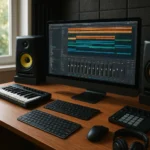
A computer should run your chosen DAW reliably, especially if your sessions use many software instruments and effects. Closed-back headphones are useful for recording because they reduce sound leakage into a microphone. Studio monitors can help you hear a mix in a room, but they do not replace headphones; each reveals different things.
Practical listening check: Test your mix on headphones, a phone speaker, and a familiar set of speakers. If the bass disappears on every small device, it may be too quiet or too dependent on very low frequencies.
USB microphones and audio interfaces
A USB microphone can be a simple route to voice recording. An audio interface is more useful when you want to connect a professional microphone, guitar, or other line-level source. To choose, think about the source you will record, the number of inputs you need, and whether you need direct monitoring.
For the basics of room setup and recording, visit our DIY Recording Studio category.
MIDI keyboards and music controllers
A MIDI keyboard is a controller. It does not usually create sound by itself; it sends note and control data to a computer or instrument. You can play chords more naturally than drawing every note with a mouse, but plenty of successful producers work directly in the piano roll.
Worth considering if:
- You want to play rather than click in notes.
- You want drum pads or knobs for hands-on control.
- You expect to sketch melodies and chords often.
Plug-and-play recording setup
A straightforward starter setup:
- Connect headphones directly to your computer or audio interface.
- Connect your microphone or instrument.
- Select the correct input and output device in your DAW.
- Set a sensible recording level; avoid clipping.
- Record a short test and listen back.
- Save a project template once the setup works.
✅ Aim for a healthy signal that is clear but not clipping.
❌ Do not turn every input gain knob to maximum because the waveform looks “too small.” A clean recording is easier to mix than a distorted one.
How to Make a Song With a Digital Song Maker
A finished song does not need a hundred tracks. It needs a clear idea, an arrangement that supports it, and enough patience to make decisions. We often start with a short loop, but we do not let the loop become the whole song by accident.
1. Choose a song idea, key, and tempo
Write down the song’s central feeling in a sentence. For example: “This is a restless song about wanting to leave, but not knowing where to go.” That idea can guide the tempo, instrumentation, lyric choices, and arrangement.
Then choose a comfortable tempo and key. If you do not know music theory, use your ears or a reference track. Our melody creation resources can help turn a phrase into a musical idea.
Quick exercise:
- Hum a short hook.
- Record it before you forget it.
- Tap the pulse and set a rough tempo.
- Try two chord options underneath.
- Keep the version that makes the lyric or melody feel more convincing.
2. Build a beat with drums and patterns
Start with the kick and snare or clap. Add a hi-hat, shaker, or percussion only if it helps the groove. A beat maker or sequencer lets you place sounds on a grid, but the grid is a guide, not a commandment.
Step-by-step:
- Choose a drum kit that fits the mood.
- Place the kick on strong beats or in a syncopated pattern.
- Add a snare or clap to define the backbeat.
- Add hats sparingly.
- Duplicate the pattern and change one detail for the next section.
If every bar is identical, change a fill, mute a sound, or add a pickup before the chorus. A small variation can make a loop feel like a song.
3. Add chords, bass, and virtual instruments
Chords establish harmony; bass connects harmony to rhythm. Keep the arrangement simple enough that the vocal or lead melody has room.
| Layer | Job in the arrangement | Common beginner trap |
|---|---|---|
| Chords | Establish harmony and mood | Playing too many notes in the same frequency range |
| Bass | Support rhythm and harmonic movement | Making the bass fight the kick |
| Lead | Carry a hook or counter-melody | Adding a second hook that competes with the first |
| Texture | Add atmosphere and movement | Filling every empty moment |
If you are not playing an instrument, draw MIDI notes, use a virtual keyboard, or adapt a licensed loop. Our instrument tutorials can help you learn the real-world parts behind the software ones.
4. Record vocals or live instruments
Record a short test before committing to a full take. Check for room noise, clipping, timing, and headphone bleed. If a vocal sounds distant, move closer to the microphone and reduce room reflections rather than simply adding more reverb.
For vocals:
- Record multiple takes while maintaining a consistent mic position.
- Keep a rough take with expressive timing; it may be more compelling than a technically perfect one.
- Use a pop filter and a quiet room if available.
- Label takes clearly so you can find the best lines later.
5. Arrange verses, choruses, and transitions
A basic arrangement might use an intro, verse, chorus, second verse, chorus, bridge, and final chorus. It does not have to. The goal is to give the listener a reason to keep listening.
Arrangement questions to ask:
- Does the chorus feel bigger, or merely louder?
- Is there a moment of contrast before the hook?
- Can you remove an instrument to make the next entrance more powerful?
- Does the song end intentionally?
We once rescued a chorus by muting the drums for one beat before the downbeat. No expensive plugin. No 47-track rebuild. Just a little silence doing its job.
6. Edit, layer, and refine your tracks
Now clean up obvious timing issues, remove unwanted noise, and tighten the arrangement. Edit with restraint. If a performance feels human and the timing supports the groove, leave it alone.
Useful refinement passes:
- Fix distracting clicks, dead air, or clipped notes.
- Balance levels before adding more effects.
- Remove parts that do not support the song.
- Check transitions and section lengths.
- Save a new version before major edits.
Vocals, Mixing Tools, and Vocal Tuning
Vocals carry lyrics, emotion, and often the main hook. A good vocal chain starts with a good performance and a clean recording, not a stack of plugins that resembles a small electrical storm.
Recording clean vocals at home
A quiet, softly treated room is usually more valuable than a costly microphone in a noisy, reflective space. Curtains, a rug, and sensible mic placement can reduce room sound. Avoid recording too close to a hard wall.
A reliable first pass:
- Position the microphone slightly off-axis to reduce plosives.
- Record at a level that leaves headroom.
- Use headphones to monitor without leaking sound into the mic.
- Keep water nearby and record several takes.
- Save the original, unprocessed vocal.
For more setup ideas, use our home recording studio guides.
Pitch correction, comping, and vocal effects
Comping means combining the strongest sections from several takes. Pitch correction can fix notes that distract from the performance, but heavy tuning is also a deliberate sound. Decide whether you want natural correction or an obvious effect.
Effects serve different jobs:
- EQ: controls frequency balance.
- Compression: reduces dynamic variation.
- Reverb: adds a sense of space.
- Delay: creates echoes and rhythmic repeats.
- De-essing: reduces sharp “s” sounds.
Use the smallest amount that gets the result you want. If the vocal suddenly sounds like it is singing from inside a tiled swimming pool, reduce the reverb send.
EQ, compression, reverb, and delay
| Tool | Common purpose | Listen for |
|---|---|---|
| EQ | Remove rumble or shape tone | Does the vocal become clearer without sounding thin? |
| Compression | Control peaks and bring a vocal forward | Does it feel steady without losing expression? |
| Reverb | Create space | Is the lyric still understandable? |
| Delay | Add movement or emphasis | Does it support the rhythm rather than muddy it? |
Process in context. A sound that seems too bright solo may sit beautifully in the full mix. Keep a bypass switch handy and compare at similar loudness; louder often sounds better even when it is not.
Automation, Mixing, and Mastering
Mixing is the process of balancing and shaping individual tracks. Mastering works on the final mix to prepare it for delivery and playback. Neither step can turn a weak arrangement into a great song—but both can help a good song communicate clearly.
Volume, panning, and effect automation
Automation changes a control over time. You might raise a vocal line at the end of a chorus, pan a percussion part slightly, or increase reverb on the final word.
A practical automation pass:
- Listen to the whole song without touching controls.
- Note the moments that need more or less energy.
- Automate volume before adding new tracks.
- Use effect changes for transitions, not decoration alone.
- Replay the section in context.
A practical online song-mixing workflow
- Organize tracks: Name and color-code them.
- Set levels: Balance the main elements before inserting plugins.
- Pan intentionally: Create space without making the mix lopsided.
- Clean up low frequencies: Remove unnecessary rumble where appropriate.
- Use compression selectively: Control only what needs controlling.
- Add space: Use shared reverb or delay sends to help sounds sit together.
- Check the vocal: Keep lyrics understandable.
- Reference another track: Compare at similar playback loudness.
- Listen on multiple systems: Headphones, speakers, and a small device.
- Export and take a break: Fresh ears catch problems that tired ears defend.
For more production support, browse our DIY Recording Studio articles.
Mix translation and reference tracks
A mix “translates” when it remains balanced across different playback systems. You do not need an expensive monitoring room to improve translation; you do need repeated listening and realistic expectations.
Use a reference track that matches your style and compare:
- Vocal level
- Low-end balance
- Overall brightness
- Section dynamics
- Stereo width
Do not compare only by loudness. Turn the reference down to a similar perceived level so your ears are judging tone and balance, not volume.
Mastering for streaming and chart-ready sound
Streaming platforms can apply loudness normalization, and their technical guidance varies. For delivery requirements, check the platform’s current documentation; Spotify explains its loudness normalization and playback behavior. Do not chase a number without listening to the track.
Before exporting:
- Confirm the required file format and sample rate for your distributor.
- Leave room for peaks if another engineer will master the mix.
- Listen to the rendered file from beginning to end.
- Check for clicks, missing tails, and accidental muted tracks.
- Keep a high-quality archive master.
A polished master is not simply the loudest file. If the chorus loses its punch or the vocal becomes harsh, louder may be worse.
Collaboration, Sharing, and Song Feedback
Collaboration can be as simple as sending a lyric and rough demo, or as involved as building a shared project in a browser-based studio. The key is to decide who is responsible for what before the session turns into a polite argument about the snare.
Collaborating remotely in a shared music studio
Tools such as Soundtrap, Soundation, and BandLab offer online collaboration features. Soundation’s site describes real-time sessions for pitching ideas, arranging tracks, and working with other producers. Users quoted on its site also praise its quick setup and collaboration experience, but these remain individual testimonials rather than universal guarantees.
To make a remote session work:
- Agree on tempo, key, and rough arrangement.
- Decide who can edit, rename, or delete tracks.
- Keep a dated export before major changes.
- Use clear notes such as “chorus vocal comp v3,” not “final-final-new.”
- Confirm whether project ownership, credits, and splits are documented.
Exporting stems and exchanging project files
A stem is an exported group or individual part, such as drums, bass, vocals, and instruments. Stems help when collaborators use different DAWs or when a mix engineer needs more control.
When exporting stems:
- Set the same start and end points for every file.
- Use consistent sample rate and bit depth.
- Label files clearly.
- Include tempo and key information.
- Keep dry and processed versions when useful.
Getting useful feedback without losing your vision
Ask a specific question. “What do you think?” often produces vague compliments. Try:
- “Can you understand the first verse lyric?”
- “Does the chorus arrive soon enough?”
- “Is the vocal too loud compared with the reference?”
- “Which of these two arrangements holds your attention?”
Take notes, look for repeated observations, and remember that a suggestion is not an instruction. You are still the songwriter.
Remixing, Sampling, and Copyright Basics
Remixing is creatively exciting—and legally more complicated than dragging a vocal into a new beat. Copyright and licensing rules depend on the source material, the jurisdiction, and the intended use.
How to remix a song with digital music software
- Choose material you own, have permission to use, or have licensed.
- Set the project tempo and identify the key if relevant.
- Import audio or stems and align them to the grid.
- Build a new groove or arrangement around the source.
- Make the remix meaningfully different through production, structure, or interpretation.
- Confirm permissions before public release or monetization.
A remix is not automatically legal just because you changed the genre, pitch, or tempo. Start with our copyright and licensing resources and consult qualified legal advice for higher-stakes releases.
Sample clearance, licensing, and attribution
Before using a sample, read the license for:
- Commercial use
- Attribution
- Redistribution
- Exclusive or non-exclusive rights
- Content ID or platform restrictions
- Use in advertisements, games, and client work
Important distinction: A sound library may grant permission to use a sample in a song while prohibiting you from reselling that sample by itself. Keep the relevant license terms with your project files.
Who owns music made with AI song generators?
There is no universal answer. Ownership and permitted use can depend on the service’s terms, your contribution, the type of output, and applicable copyright law. The U.S. Copyright Office explains its approach in its AI and copyright materials.
For any AI music service:
- Read the current terms of service and commercial-use policy.
- Check whether generated outputs are exclusive.
- Confirm whether uploaded material may be used to train or improve a model.
- Save proof of the plan or license that applied when you created the track.
- Ask a qualified professional if the release is important to your business.
AI Make Song describes some outputs as royalty-free and offers tools such as song generation and stem separation, but the service’s own wording is not a substitute for reading its current license.
Exporting, Releasing, and Promoting Your Music
Finishing the arrangement is not the final step. You still need to export the right files, keep backups, and make sure collaborators are credited.
WAV, MP3, stems, and project-file formats
| Format | Typical use | Keep in mind |
|---|---|---|
| WAV | High-quality master or mix delivery | Larger file; check the recipient’s specifications |
| MP3 | Easy sharing and previews | Compressed; not ideal as your only archive |
| Stems | Mixing, remixing, or collaboration | Export all parts from a consistent timeline |
| Project file | Continued editing in the same DAW | May depend on plugins, samples, and software version |
| MIDI | Transferable note data | Does not include the instrument sound itself |
Keep both a high-quality master and a smaller preview copy. If a project uses third-party plugins or samples, store a notes file listing them.
Preparing music for streaming platforms
Streaming distributors have their own submission requirements, and those requirements can change. Follow the current guidance from your distributor and platform rather than relying on an old forum post.
Before delivery, confirm:
- Artist and track metadata
- Cover artwork requirements
- Audio format and file integrity
- Credits and contributor information
- Rights to samples, beats, and AI-assisted elements
- Release date and distribution permissions
Backing up projects and protecting your work
Use at least two copies of important projects, ideally in separate locations. A workable system might include a computer copy and a cloud or external-drive copy. Save a dated project version before major edits and archive final exports separately from working files.
For co-writes, keep agreements about writer shares, master ownership, producer credits, and permissions in writing. Our copyright and licensing category offers further reading.
Troubleshooting Common Digital Music-Making Problems
Every producer eventually hears a click, loses a plugin, or opens a project that suddenly sounds like it has moved into another key. Most problems have a fix. Save a copy before you start experimenting.
Latency, audio glitches, and driver issues
Latency is the delay between playing or singing and hearing the result. Reduce the audio buffer when recording if your computer can handle it, and increase it during mixing if the session is demanding.
Try:
- Selecting the correct audio device.
- Closing unnecessary applications.
- Using wired headphones instead of Bluetooth for recording.
- Checking interface drivers and firmware.
- Recording with direct monitoring if your interface supports it.
Missing plugins, samples, and project files
If a project opens with missing media:
- Check the project’s sample and plugin paths.
- Reconnect external drives.
- Use the DAW’s “collect,” “consolidate,” or archive function if available.
- Keep a copy of the original audio and MIDI.
- Bounce critical parts to audio if future compatibility is a concern.
CPU overload and large-session slowdowns
Large sessions can tax a computer, especially with multiple software instruments and effects. Freeze or render tracks, reduce unused plugins, and close instruments that are not playing.
A simple rule: keep the editable version, but do not make the computer calculate everything live if you do not need it to.
Digital Song Maker Skills and Learning Resources
A music app can provide the tools, but learning comes from making, listening, and finishing. We recommend building one small skill at a time rather than watching twenty tutorials before recording your first chorus.
Music theory basics for songwriters and beatmakers
You can write music without formal theory, but basic concepts make collaboration and problem-solving easier:
- Tempo: how fast the beat moves.
- Key: the tonal center of a piece.
- Chord: multiple notes played together.
- Scale: a collection of notes that can guide melody writing.
- Time signature: how beats are grouped.
Use theory as a map, not a rulebook. If a note sounds right in the song, keep it and learn what it is later.
Practice projects to build production skills
Try these short exercises:
- Make a 30-second beat using only three sounds.
- Record a verse and chorus with one microphone.
- Create two arrangements from the same chord progression.
- Rebuild a song section by ear using a reference track.
- Mix a vocal with only volume, EQ, compression, and reverb.
Our melody creation, lyric inspiration, and instrument tutorial guides can support each stage.
Finding tutorials, communities, and producer feedback
Start with official documentation for the software you use, then look for tutorials that match your version. A five-year-old walkthrough may teach a workflow that no longer exists—or send you on a hunt for a button that has been renamed.
Useful starting points include:
- Ableton Live learning resources
- FL Studio manuals and tutorials
- GarageBand support
- Reaper user guide
- BandLab Help Center
When asking a community for feedback, share a short excerpt and ask one clear question. Better feedback starts with a better question.